
Car Play Connect for Android
LeoStudio Global Ltd.Auto & Vehicles
4.3467.00 Reviews
- Version
- 3.2.6
- Installs
- 100.00K
- Age Rating
- Everyone
Screenshots
Our Review of Car Play Connect for Android
 Analysis by Appyee
Before installing anything, I’d set one expectation: Car Play Connect is a phone-to-car connection app, not a replacement for a built-in infotainment system. Its appeal is bringing useful phone functions into a car display, but the result depends on the phone, the vehicle, and how their connection works together. If you’re trying it for the first time, a calm setup while parked is a much better test than troubleshooting at the curb with a journey already underway.
What I’d expect from the app
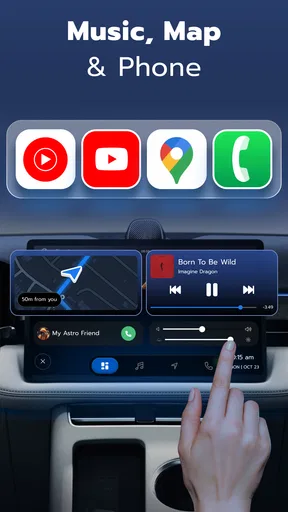
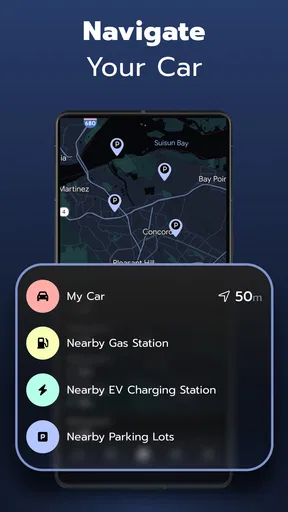
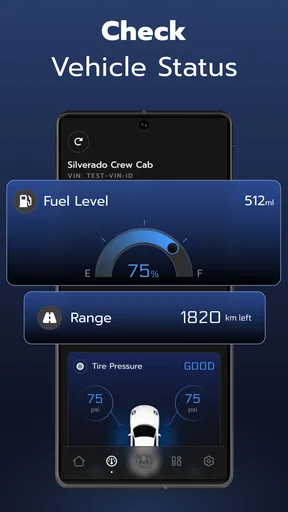
The idea is practical: make maps, navigation, calls, music, and car status easier to access from the vehicle display instead of handling each task on the phone. That can help if your dashboard screen feels limited or you want a more organized way to use familiar phone functions while driving. It does not mean every phone app will automatically be suitable for a car screen, so I’d treat the dashboard as a place for a small set of driving-relevant tasks rather than a second phone to browse.
It sits in the Auto & Vehicles category, and LeoStudio Global Ltd. is the developer. The app is free to install, is rated for Everyone, and has an average rating of 4.4 from around 4,000 ratings. It has passed 100,000 installs, which suggests that plenty of drivers have been curious enough to try this kind of phone-to-car setup. It was released on July 31, 2023, and version 3.1.4 is the current version. Optional in-app purchases range from $4.99 to $99.99 per item, so I’d check the purchase details before paying for anything rather than assuming every capability is included at no cost.
A calmer first setup
First, install the app and look for its connection guidance before changing settings at random. The product is built around linking a phone with a car display, and the original setup flow points users toward Bluetooth. I’d start with both devices parked and nearby, make sure Bluetooth is enabled, and follow the prompts in order. If the car has its own pairing menu, completing or checking that connection there can make it easier to tell whether a problem is with the phone-to-car link or with the app itself.
Give the first connection a little time, and avoid testing several things at once. Pairing, opening a map, starting music, and trying a call in one flurry makes it hard to know what worked. A more useful sequence is to establish the connection, confirm that the car display responds, and then test one task you actually need. If the screen does not change, check the vehicle’s selected input and the phone’s connection state before repeatedly tapping through menus.
Make the first success a small one
For a first meaningful test, I’d choose a short route I already know. Start navigation while parked, confirm that the route appears where you expect, and leave the phone alone once you set off. A familiar destination makes it easier to notice whether the display is useful without adding the pressure of unknown turns. After that, try a call or a music app separately, not while moving through a complicated junction.
This step-by-step approach also answers a common first-time question: what should I do if pairing works but one feature does not? Treat connection and individual tasks as separate checks. If navigation works but audio does not, the entire setup may not be broken; focus on the audio source and the vehicle’s current media selection. If nothing reaches the car display, return to the connection prompts and the car’s input settings while still parked.
Using it on ordinary drives
If you're anything like me, you've probably found yourself tangled in the wires of traditional car systems, yearning for something more intuitive. Enter Car Play Connect for Android, an app that promises to revolutionize your driving experience by seamlessly integrating your smartphone with your car's infotainment system. I’ve taken it for a spin, and here’s the lowdown.
Features That Stand Out
Now, let’s talk features. What sets Car Play Connect apart is its ability to mirror your phone’s screen onto your car’s display. This means you have access to virtually every app you use on your phone, right there on your dashboard. It’s like having a mini command center at your fingertips.
Another cool feature is voice command integration. Using Google Assistant, you can make calls, send texts, or even ask for directions without taking your hands off the wheel. I tried it out on a road trip, and it was incredibly responsive, picking up my commands even with music playing in the background.
And speaking of music, the audio quality is top-notch. Whether you're blasting your favorite road trip playlist or catching up on podcasts, the sound is crisp and clear, making every drive feel like a concert on wheels.
Keeping Safe on the Road
One of my favorite aspects of Car Play Connect is its focus on safety. The app's design ensures you spend less time looking at your phone and more time with your eyes on the road. Notifications are discreet, and the large icons are easy to tap, minimizing distractions.
In addition, the app supports various emergency features. For instance, if you’re stuck on a deserted road with no cell service, the app can still provide location-based assistance. It’s these thoughtful features that make a real difference, especially during long trips or in unfamiliar areas.
Room for Improvement
No app is perfect, and Car Play Connect is no exception. While the app excels in many areas, there are a few quirks I encountered. Occasionally, there were minor connectivity issues, particularly when transitioning between areas with weak signals. It’s not a deal-breaker, but something to be aware of.
Also, while the app supports a wide range of third-party apps, not all apps are compatible yet. I found myself missing a few of my favorites, but updates are frequent, and the developers seem committed to expanding compatibility.
Choosing the right role for it
I’d consider this most useful for a driver whose vehicle has a display they want to connect with a phone and who mainly needs navigation, calls, and music. It may also suit someone who borrows different cars and wants to see whether a phone-based setup can make the dashboard more useful. The app is less compelling if your car already offers a reliable system that handles those same tasks comfortably, or if you want a guaranteed connection without first checking how your particular phone and vehicle behave together.
Compared with using a phone mount, the main potential advantage is keeping selected information on the car display rather than glancing down at a handset. A mount, however, is often the simpler choice when a vehicle has no compatible display or when the connection proves unreliable. Compared with a car’s built-in navigation and media controls, a phone-based approach can feel more familiar, but it also brings the usual dependence on the phone and its connection. I would choose whichever arrangement lets me make fewer adjustments once the car is moving.
A useful real-world routine
Picture a weekday drive to an unfamiliar appointment. Before leaving, I’d connect the phone, set the destination, and choose a playlist or audio source while parked. Once moving, I’d keep the display focused on the route and use voice control only for a simple call or direction change when it is safe to do so. When I arrive, I’d disconnect or end the session before dealing with messages. That routine makes the app a practical bridge for a few tasks, not an invitation to manage the whole phone from the dashboard.
A less obvious tip is to test your most important task first, not the most entertaining one. If getting directions onto the display is the reason you installed it, make that your first check; music can wait. Another useful trade-off is to keep the phone’s own navigation or audio controls familiar as a fallback. If the connection drops, you can pull over safely and switch methods instead of trying to repair the setup while driving. I’d also avoid treating screen mirroring as permission to use every app on the road: a larger screen does not make a distracting activity safer.
Where friction can appear
For troubleshooting, change one thing at a time. If the display is blank, check the car’s selected source and whether the phone is still connected before reinstalling anything. If calls work but a map does not appear, focus on that specific app and the way it is being opened. This simple separation saves time and helps avoid disrupting a connection that is already handling another task correctly.
There is also a difference between an app being free to install and every optional purchase being free. I’d explore the basic connection first and only consider an in-app purchase if its stated purpose matches something I actually need. A purchase should not be a substitute for checking compatibility: if the phone and car cannot establish the connection you need, paying for an extra item is unlikely to solve that underlying mismatch.
Final Thoughts
All in all, Car Play Connect for Android is a fantastic addition to any driver’s toolkit. It combines convenience with safety, creating a seamless bridge between your smartphone and your car. For anyone tired of fumbling with their phone while driving, this app is a game-changer.
So, if you’re ready to upgrade your driving experience, give Car Play Connect a try. It’s more than just an app; it’s like having a co-pilot who always knows the best route, plays the right tunes, and keeps you safe on the road.
My practical recommendation
I’d try it if the goal is clear: get a familiar phone task onto a car display and reduce the need to handle the handset. Start with the connection, test one familiar route while parked, and decide from that real result whether it fits your commute. If you value a dependable built-in system above flexibility, or your vehicle’s display does not work with the setup you need, sticking with the car’s own controls or a safely positioned phone mount may be the better choice.
Android 8.0 is the minimum operating system requirement, so I’d check the phone’s Android version before installing. The app’s Everyone age rating and free download make trying the basic setup approachable, while the optional purchases are worth reviewing with care. My verdict is positive but practical: it can make a compatible drive feel more organized, yet its value comes from a connection that works reliably in your own car. Test that first, then build the rest of your routine around it.
Privacy and Permissions
See what permissions an app requests and how it handles your data.
- Contacts
- read your contacts
- Location
- approximate location (network-based), precise location (GPS and network-based)
- Phone
- directly call phone numbers
- Microphone
- record audio
- Wi-Fi connection information
- view Wi-Fi connections
- Other
- view network connections, full network access, reorder running apps, prevent device from sleeping, read Google service configuration
Verdict
Strengths of Car Play Connect for Android
- Easy to integrate with existing car systems.
- Supports a wide range of Android devices.
- User-friendly interface with intuitive design.
- Allows customization of dashboard layout.
- Reliable connection with minimal lag.
Limitations of Car Play Connect for Android
- Limited compatibility with older car models.
- Requires a stable internet connection.
- Some features behind a paywall.
- Occasional app crashes reported by users.
- Initial setup can be time-consuming.
Other Releases by LeoStudio Global Ltd.
View All
Star Gazer - Astronomy Sky Map
Education4.6

Smart Remote For Vizio TV
Tools4.6

AI Home Design Interior DECOZY
Art & Design4.6

People Finder AI Deep Search
Lifestyle3.9
Similar Picks in This Category
View All
Android Auto
Google LLC4.1

maxim — order a taxi & food
PT. SITO4.7

Штрафы ГИБДД: проверка с фото
Pays LLC – Штрафы ГИБДД4.7

Номерограм – проверка авто
Авто Ассист4.8

Дром Авто
Дром4.9

Frequently Asked Questions
What is Car Play Connect for Android?
Car Play Connect for Android is an application that enables Android users to integrate their smartphones with their car’s infotainment system, mimicking the experience of Apple CarPlay. It allows users to access navigation, music, messages, and calls directly from their car’s display, enhancing convenience and safety while driving.
Is Car Play Connect compatible with all Android devices?
Car Play Connect is compatible with most Android devices running Android OS version 6.0 or higher. However, the app's performance can vary depending on the smartphone model and the car's infotainment system. It's advisable to check the app's compatibility list on the official website or app store before downloading.
Does Car Play Connect require an internet connection to function?
Yes, Car Play Connect requires an active internet connection to access online features such as navigation, music streaming, and real-time traffic updates. However, some offline functionalities, like accessing downloaded music or pre-loaded navigation routes, may still be available without a connection.
Is Car Play Connect safe to use while driving?
Car Play Connect is designed to enhance safety by providing hands-free access to essential smartphone functions. By integrating with your car’s display and controls, it minimizes distractions compared to using a phone directly. It’s crucial, however, to use it responsibly and adhere to local laws regarding mobile device usage while driving.
Are there any subscription fees for Car Play Connect?
Car Play Connect offers a free version with basic features. However, there might be premium features available through in-app purchases or a subscription plan. It's recommended to review the pricing details on the app store to understand the full range of available features and any associated costs.
